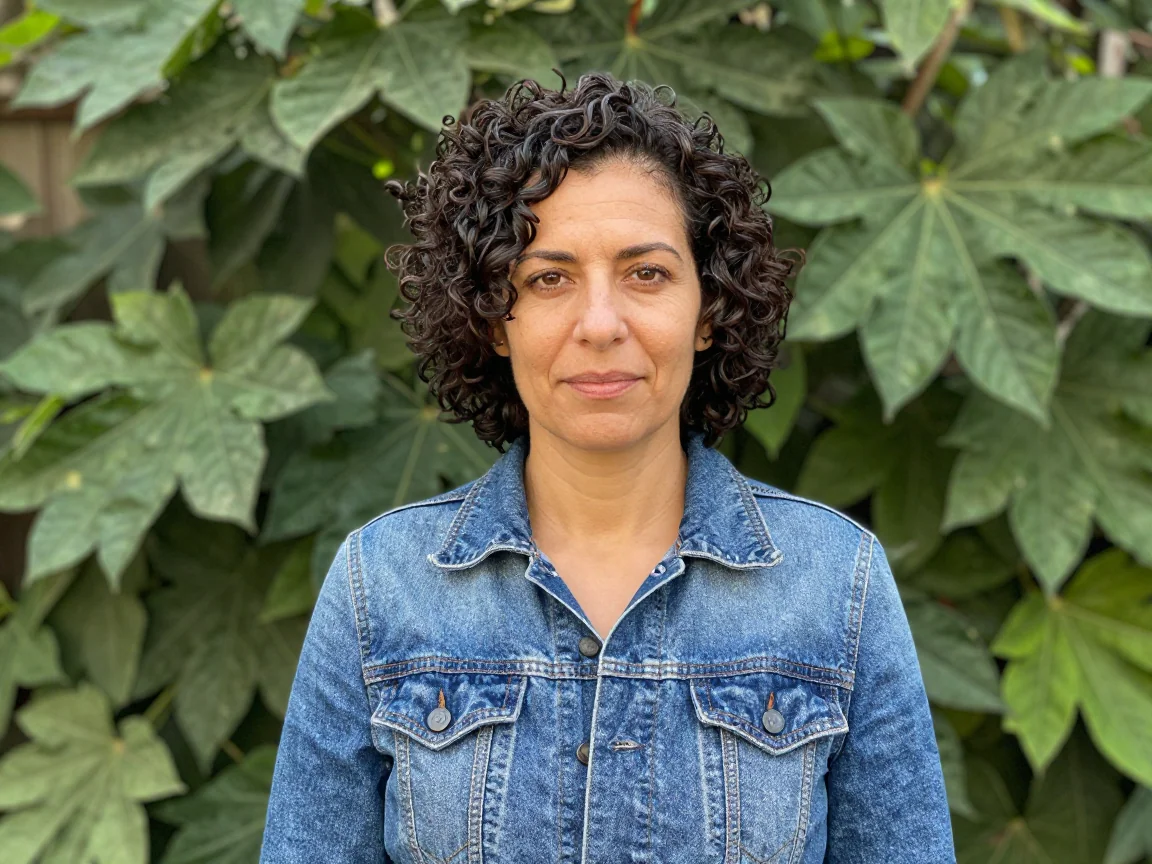
Portrait input reference
Start with a sharp image where the subject can be distinguished from the surroundings.

Use this BG remover for one image and download transparent or solid-color PNG. Choose a clear photo, then review the available trial or credit quote.
Drop an image here, or choose a file
JPG, PNG or WebP · up to 5 MB and 16 MP per imageUploaded images use shareable media links. Avoid uploading sensitive images.
Start with a sharp image where the subject can be distinguished from the surroundings.
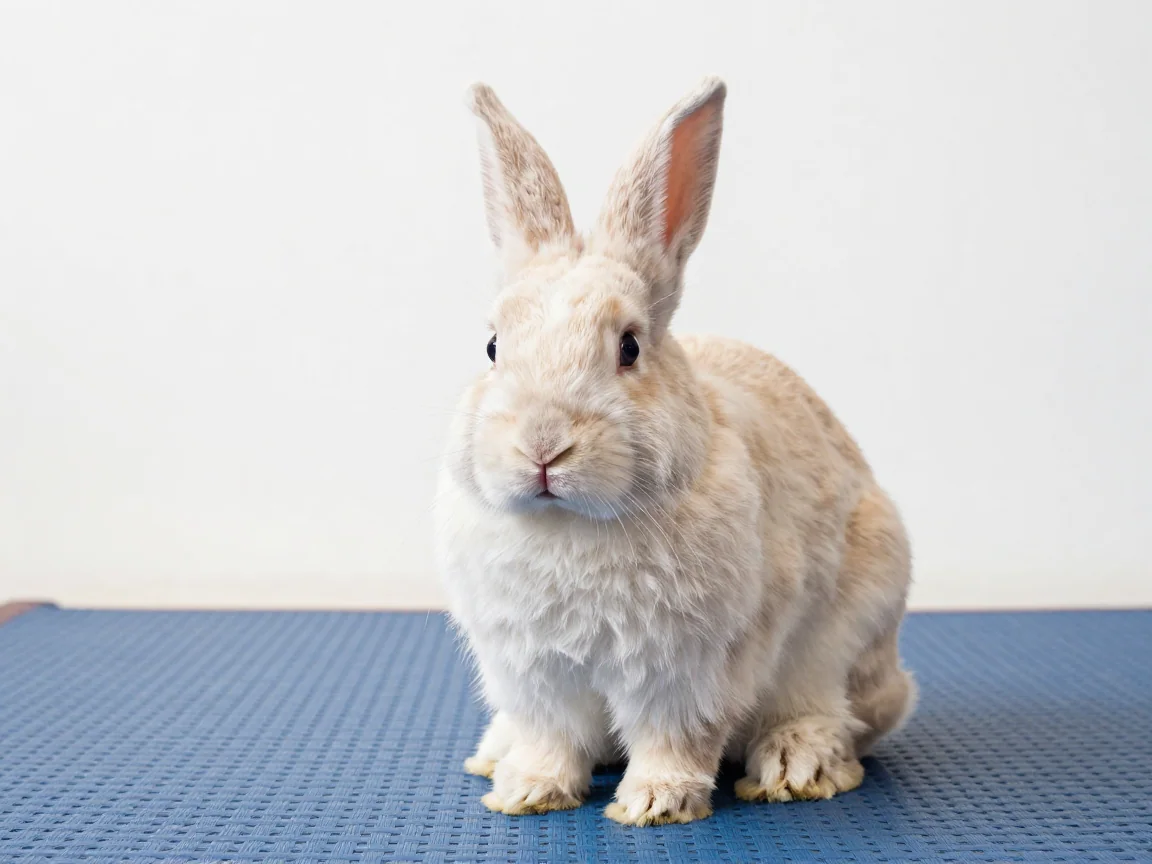
Fur and thin edges need a close visual check after processing.
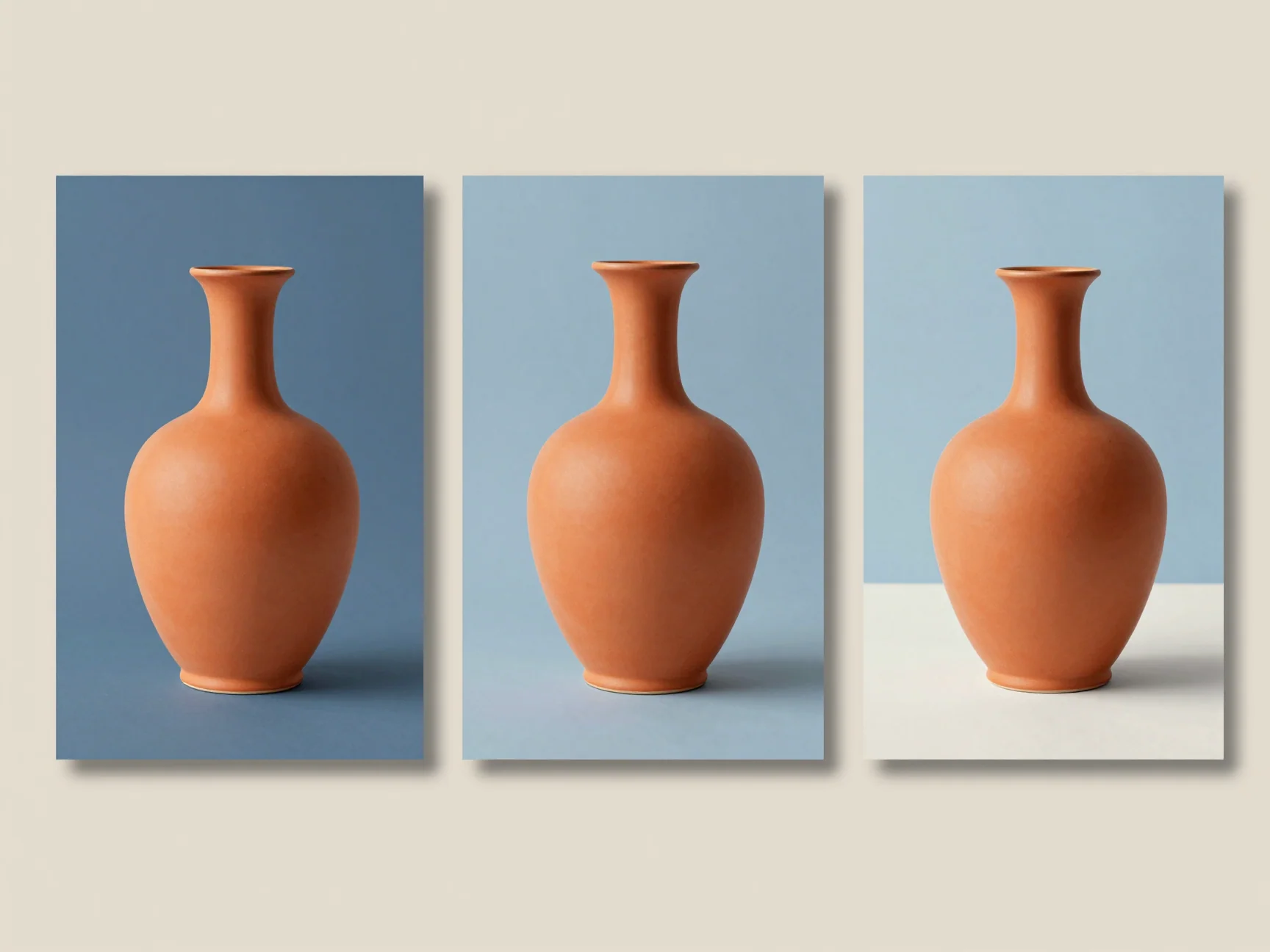
A transparent PNG can be placed over a new layout without carrying its original background.

Zoom in and review fine edges on both light and dark preview backgrounds.
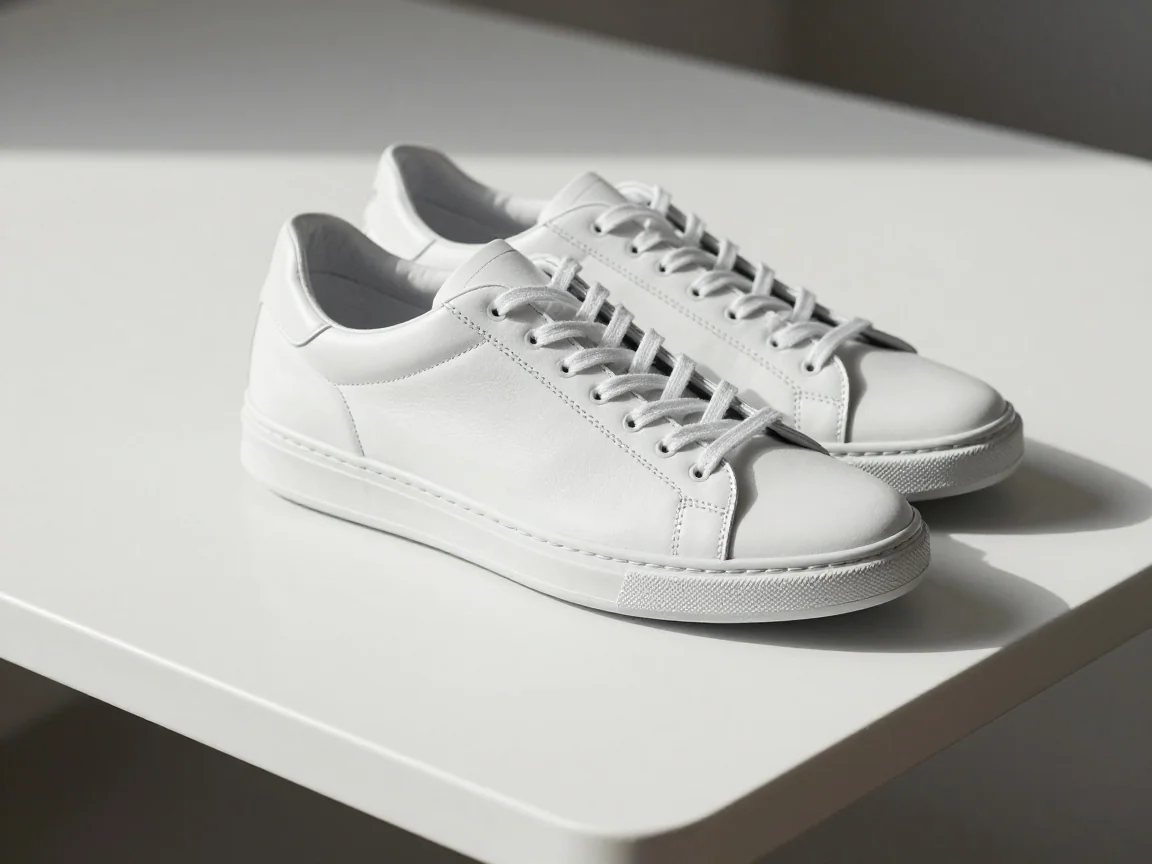
Remove white background with AI or optional local white-pixel removal. Inspect pale subject details, preview transparency, and download PNG.

Make a background transparent, inspect edges on different previews, and download PNG. Review input limits and the trial or credit quote before processing.
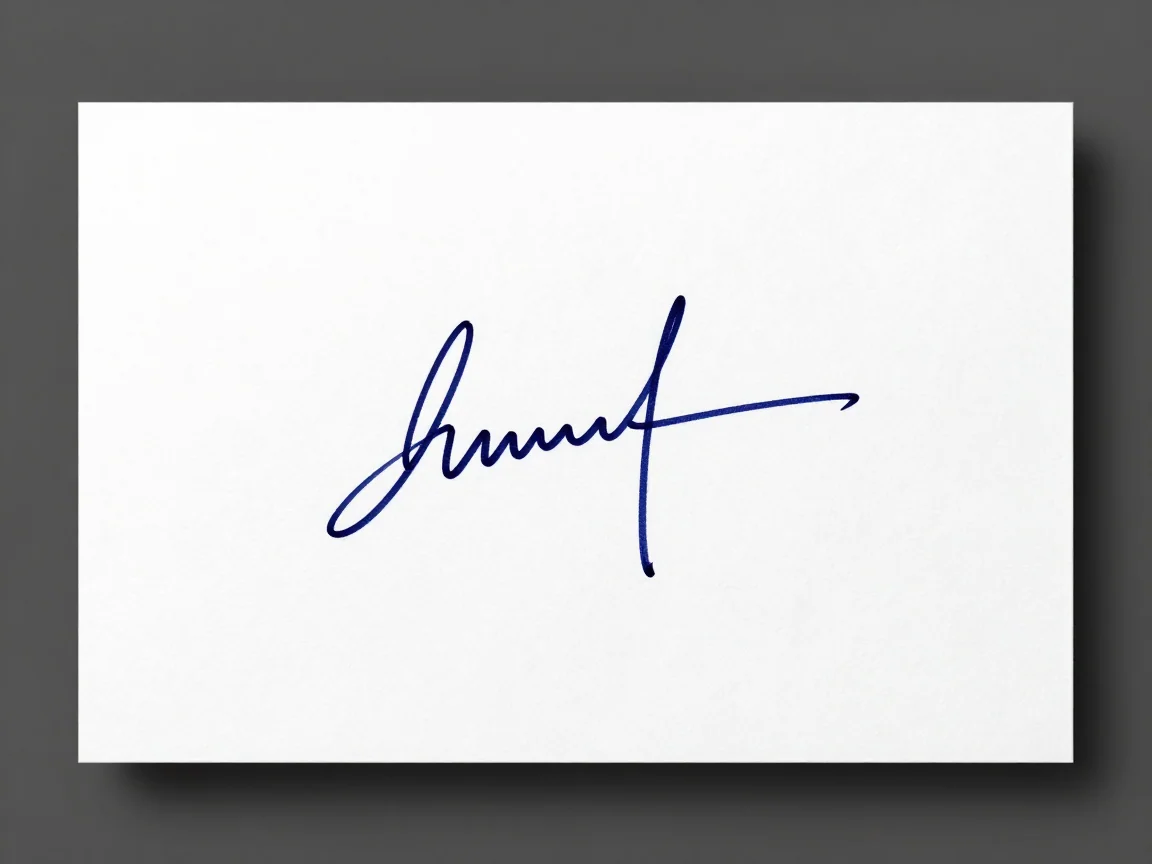
Remove paper backgrounds from signature images. Compare AI and local white-pixel options, inspect thin strokes, and download a transparent PNG.
Remove a logo background and download PNG. Inspect lettering and enclosed spaces, or use optional local white-pixel removal for suitable simple graphics.
Use the HD background remover to inspect source detail and actual PNG dimensions. Review the quote and limits; background removal does not upscale images.
Use AI removal for a pale subject or a photo with uneven lighting. Simple white graphics also have an optional local white-pixel method. That method removes matching light pixels wherever they occur, including white details inside the subject, so preview the trade-off carefully.
Keep an image ready for another layoutChoose transparent PNG when the subject needs to sit over a presentation, a design, or another photo. The checkerboard is a preview of empty space, not a pattern printed into the file. A solid export color creates a filled background instead.
Prepare an image of a signatureStart from clear ink and a reasonably even paper background. Check fine strokes, loops, and the ends of the signature. Removing the paper background creates an image asset; it does not authenticate the signature or automatically meet a form’s file requirements.
Keep logo lettering and inner spacesReview small lettering, thin strokes, and enclosed gaps against contrasting previews. The result remains a raster PNG. Removing a background does not create an SVG, redraw a trademark, or recover details missing from a low-resolution source.
For AI removal, use a file up to 5 MB and 16 megapixels, with each side between 256 and 4096 pixels. Keep a copy of the original. A sharp subject is easier to inspect than a small blurred screenshot.
Select Free trial when an allowance is available, or Use credits to see the quote. Confirm after checking the image and price. These choices describe how processing is paid for; they do not promise different source resolution or perfect edges.
Use the original/result control, then inspect hair, fur, openings, lettering, and pale details. Switch preview backgrounds to reveal fringes. Choose transparent, white, or a custom solid color for the downloaded PNG.
Check the output dimensions and selected background before downloading. Exporting a finished result does not require another AI submission. Keep your original alongside the PNG so you can revisit a difficult edge later.
Transparent PNG is useful when the background belongs to the destination layout rather than the photo. Test the image on that destination color before sharing it; an edge that looks clean on white can reveal a pale fringe on a dark design.
An image needed at a larger display sizeCheck the source and returned dimensions before choosing a canvas. Background removal is not automatic upscaling, and putting a small image on a large canvas does not recreate missing detail. The HD page explains which dimensions to inspect.
A difficult photo that needs another lookWhen a result is unclear, return to the original lighting, contrast, and detail. Cropping carefully or choosing a sharper source can be more useful than repeating the same task without a change. Read the preparation guide before a retry.
A limited Free trial allowance is shown in the workspace. Availability can change with the current allowance and service limits. If it is unavailable, review Use credits or return after the displayed reset. Optional local white-pixel removal on the white-background, signature, and logo pages does not use AI credits.
Completion time varies with upload, queue conditions, and processing. Follow the image status rather than a fixed seconds promise. Keep the page open while uploading. If the submission is being checked, wait for its result before deciding whether another request is needed.
Read the displayed reason first. Unsupported formats or dimensions need a corrected file. Insufficient credits requires an available trial or added credits before a new paid task. Use retry for a confirmed failed image; do not repeatedly resubmit a pending task. Check the final job or credit status when a failure is resolved.
This workspace processes still images and downloads PNG. It does not remove video backgrounds, produce editable SVG, or automatically enlarge a low-resolution image. The format and preparation guides explain when a transparent PNG is suitable and what to check in the destination application.
Cloud processing requires an upload and uses shareable media links. Avoid confidential photos or documents, because someone with a public link may be able to view the image. Uploads do not automatically become public examples. The optional local white-pixel method stays on your device.
Check the source, choose a processing option, and compare the finished edge before using the PNG in another design.